
SusSkin
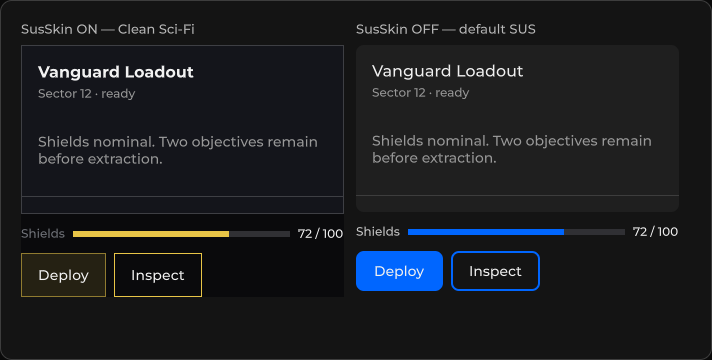
Skin mechanic — applies a discovered skin descriptor to a live VisualElement tree: layout sheets stay attached whether the skin is on or off, so .sharq composition classes keep resolving; brand sheets (tokens/overrides) attach only while the skin is enabled — that's what "off → default SUS look" means. An optional component layer carries small override sheets into each component while the skin is enabled. Root/surface classes toggle with plain USS, switching between a glass and a paper surface.
Package
SusKit · Services (commercial)
SusSkin is a plain C# static class, not a .sharq component. Kit itself never names a concrete skin — every skin ships as its own descriptor asset (SusSkinAsset) and links in through the same mechanic, whether it's a free layout-only skin or a paid brand skin-set.
Usage
// Fluent SusApp entry — layout sheets always, brand + component sheets and fonts only when enabled
SusApp.Create(document)
    .UseSkin(mySkinAsset, enabled: true)
    .Run();

// Re-apply on a live root (surface defaults to the descriptor's DefaultSurface)
SusSkin.Apply(root, mySkinAsset, enabled: true, SusSkinSurface.Glass);

// Remove the skin entirely — classes off, layout, brand AND component sheets detached
SusSkin.Off(root, mySkinAsset);| Member | Role |
|---|---|
UseSkin(skin, enabled) | Fluent SusApp entry — layout sheets always, brand + component sheets and fonts when enabled |
Apply(root, skin, enabled, surface?) | Toggles root/surface classes, (re)attaches sheets on a live root, adds or removes the component layer — idempotent |
Off(root, skin) | Detaches everything, including layout sheets and the component layer — for leaving the tree for good |
AttachLayoutSheets(element, skin) | Layout sheets only, for sub-trees mounted outside the app root's panel |
Skin descriptor
A skin is data: a sus-skin.<id>.json descriptor (schema sus-skin/v1) that SusSkinAsset parses. Sheet entries are Resources paths.
{
  "schema": "sus-skin/v1",
  "id": "myskin",
  "class": "myskin-skin",
  "sheets": {
    "layout":    ["SusRuntime/myskin-screens"],
    "brand":     ["SusRuntime/myskin-tokens", "SusRuntime/myskin-overrides"],
    "component": ["SusRuntime/myskin-component-overrides"]
  },
  "surfaces": { "glass": "myskin-skin--glass", "paper": "myskin-skin--paper" },
  "defaultSurface": "glass"
}| Layer | Attached to | When | What goes in it |
|---|---|---|---|
sheets.layout | The skin root | Whenever the skin is present, on or off | Composition classes for the skin's own .sharq chrome |
sheets.brand | The skin root | Only while the skin is enabled | Design tokens (custom properties) and overrides written under the skin class |
sheets.component (optional) | Every styled component under the skin root, after the component's own generated sheet | Only while the skin is enabled | Small override-only sheets written without the skin-class prefix — no tokens |
A descriptor without sheets.component leaves every component's style sheets exactly as they are without a skin.
How brand rules win
UI Toolkit settles a conflict between rules from different sheets by specificity first. Only when specificity is equal does the sheet attached lower in the hierarchy win. Every styled kit component carries its own generated sheet (.g.uss) on the component element itself, so a brand rule on the root with the same specificity as the kit rule loses to it — the kit look stays.
There are two ways to make a brand rule win.
Default: write overrides under the skin class
Prefix every override with the skin's root class (the descriptor's class). One extra class raises the specificity above the kit's single-class rule, so the rule wins from the root. This costs nothing at runtime and needs no extra layer.
/* Loses: (0,1,0) on the root ties with (0,1,0) on the component itself */
.sus-menu-button { border-width: 1px; }

/* Wins: (0,2,0) beats the kit's (0,1,0) */
.myskin-skin .sus-menu-button { border-width: 1px; }
When the kit rule is itself compound, repeat the whole kit selector under the prefix. A single-class prefix is not enough there: .myskin-skin .sus-menu-button is (0,2,0), the same as the kit's .sus-menu-button--flat.sus-menu-button--color-primary, and the tie goes to the component's own sheet.
/* Wins: (0,3,0) beats the kit's compound (0,2,0) */
.myskin-skin .sus-menu-button--flat.sus-menu-button--color-primary { background-color: var(--myskin-accent); }
Turning the skin off (Apply(root, skin, enabled: false)) removes the skin class and the brand sheets, so every prefixed override stops matching and the kit look returns.
Opt-in: the component layer
A skin written like web CSS — overrides without the skin-class prefix, expecting an equal-specificity rule to win — lists those sheets in sheets.component. While the skin is enabled, SusSkin appends them after the own generated sheet of every styled component under the skin root, so an equal-specificity rule wins:
/* In a sheets.component sheet, on a SusMenuButton that carries the class my-screen__back-btn:
   (0,1,0) now beats the kit's .sus-menu-button (0,1,0) */
.my-screen__back-btn { border-width: 1px; }- Overrides only, no tokens. The layer is appended at every nesting level, so keep it small. Custom properties set in
sheets.brandon the root already inherit down to every component. - Off returns the kit look. Disabling or removing the skin removes the layer from every component it was added to.
- Apply the skin to the application root. Overlays (menus, dialogs, tooltips) receive the layer only when the overlay layer sits under the root the skin is applied to — use
UseSkinonSusApp, orApplyonSusApp.Root. A component mounted straight into the overlay layer outside the skin root does not get the layer; overlays opened from a component under the root do. - Components created later pick the layer up when they attach to the panel.
Notes
- Surface is a two-way choice —
SusSkinSurface.GlassorSusSkinSurface.Paper— declared per skin descriptor asDefaultSurface, overridable perApplycall. - Storybook story Skin (
skin): discovers whatever skin package the project links (the same way the Skins window does) and shows it side-by-side with the default SUS look, with an "Skin enabled" toggle and a glass/paper surface switch. - Hub shot
kit-skin.png— showcase (pending capture).