
SusSettingsContent
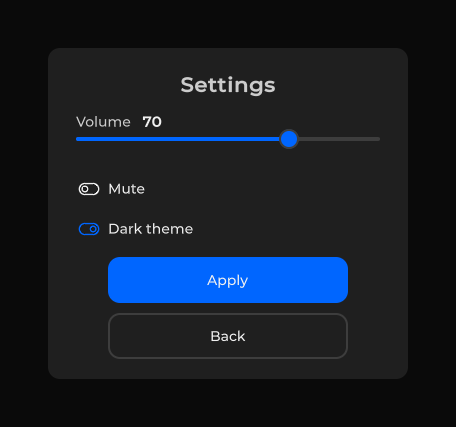
Settings panel — volume slider, mute + dark-theme toggles, Apply / Back; persists via SusGameSettingsStore.
Package
SusGame · Screens (commercial)
Props
| Name | Type | Default | |
|---|---|---|---|
Items | Prop<List<SusSettingItem>> | [] | v-model |
Presentation | Prop<string> | "screen" | |
TitleText | Prop<string> | "Settings" | |
ApplyText | Prop<string> | "Apply" | |
BackText | Prop<string> | "Back" | |
ChangedText | Prop<string> | "changed" |
Slots
Events
Style hooks
USS class contract — override appearance without touching C#. States toggle via these classes:
sus-flow-settings-categorysus-flow-settings-category-rowsus-flow-settings-dropdownsus-flow-settings-rowsus-flow-settings-row-headsus-flow-settings-slidersus-flow-settings-togglesus-flow-settings-valuesus-flow-settings-vol-labelsus-settings-contentsus-settings-content__columnsus-settings-content__column--lastsus-settings-content__columnssus-settings-content__crumbssus-settings-content__head
Usage
The panel is data-driven: it builds one row per setting item (toggle, slider or dropdown) and reads/writes values through a store.
<template>
  <sus:SusSettingsContent />
</template>var settings = new SusSettingsContent();
settings.LoadFromStore();
settings.ApplyBtn.OnClick += () => settings.SaveToStore(themeRoot: null);
settings.BackBtn.OnClick += () => { /* dismiss */ };| Prop / API | Role |
|---|---|
Items | Rows to show. null (default) = SusGameSettingsCatalog.DefaultItems followed by the registered rows |
Store | Value store (ISusSettingsStore); the default adapter persists the stock rows and registered rows |
Presentation | "screen" (default) or "modal" (root modifier only) |
TitleText / ApplyText / BackText | Title and button labels. Defaults "Settings", "Apply", "Back" |
ChangedText | Per-row "changed" badge. Default "changed" |
ApplyBtn / BackBtn | Host wiring |
Volume / VolumeLabel / VolumeChip / Mute / DarkTheme | Legacy handles to the stock rows' controls, filled when the rows are built (null while that row is not shown). Kept for existing host code; new code reads and writes values through Store |
LoadFromStore() / SaveToStore(themeRoot) | Pull values from the store / push them (theme via SetAndApplyTheme) |
ResolvedItems() | The rows the panel shows right now |
Adding your own rows
SusGameSettingsCatalog.Register(item, get, set) adds an app-owned row without replacing Items. The default store reads the current value through get and writes the applied value through set; registering the same id again replaces the earlier row in place.
SusGameSettingsCatalog.Register(
    new SusSettingItem { Id = "subtitles", Label = "Subtitles", Kind = SusSettingKind.Toggle, Default = true },
    get: () => MySettings.Subtitles,
set: v => MySettings.Subtitles = (bool)v);- With
Items = nullthe panel shows the default rows (volume, mute, dark theme) followed by the registered rows. The default rows themselves cannot be registered. Unregister(id)removes one row,ClearRegistered()removes them all.- The panel reads the catalog when it builds its rows, so register before the panel is shown.
Reduce motion row
SusGameSettingsCatalog.ReduceMotion is a stock toggle, off by default and opt-in: it is not part of DefaultItems. Show it with SusGameSettingsCatalog.RegisterReduceMotion() (it is then listed after the default rows) or put it into your own Items.
On load (LoadFromStore()) the default store restores only the application-wide SusMotion.Reduce flag; on Apply (SaveToStore(themeRoot)) it also adds or removes the sus-motion-reduce class on the theme root. Until the player has saved a choice, neither call touches the flag or the class. To have the class from the first frame, call SusGameSettingsStore.ApplyMotion(themeRoot) once the theme root exists. Kit and game components that loop pause or settle while the flag is on (spinners, indeterminate progress, text effects, parallax backdrops, the search radar sweep). Use the class to calm your own skin animations with one selector:
.sus-motion-reduce .my-skin__scanline {
    display: none;
}
Localized strings
Every visible default string of SusGame is an English literal, and the same literal is the key in a String Table Collection named SusGame (SusGameText.Table). The full list is SusGameText.Entries: use it as the checklist when you fill the table. Settings row and category labels are looked up by their Label, so your registered rows translate the same way.
- Your value wins. A string prop you set yourself (for example
TitleText = "Options") is never overwritten by a translation. - Missing table or entry = English. A string that has no translation keeps its English default.
- Locale switch works live. Changing the selected locale re-translates bound strings.
- Without Unity Localization (
com.unity.localizationnot installed) the English defaults show. A project that has the Localization package but no Localization Settings keeps the English defaults too.
The key is the English text
Because the key is the English default itself, a future change to an English default is also a key change: the old table row stops matching and that string falls back to English. Compare your table with SusGameText.Entries after an update.
To bind your own component props the same way, use SusGameText.Bind(owner, (prop, "English text"), …) or, for other tables, SusLocalization.BindWhileAttached(owner, table, pairs) from SusKit.
Notes
- Dark theme toggle applies on change (does not wait for Apply).
SaveToStore(null)resolves cascade root viaSusThemeService.ResolveCascadeRoot(this).
Replacing custom workarounds
| Custom workaround | Built-in API |
|---|---|
| Find the title by class and write the Apply/Back button texts | TitleText / ApplyText / BackText + the SusGame table |
Replace Items to add your own rows | SusGameSettingsCatalog.Register(item, get, set) |
| Your own store wrapper for a "reduce motion" key | SusGameSettingsCatalog.RegisterReduceMotion() → SusMotion.Reduce, class sus-motion-reduce |