
SusEquipmentSlot
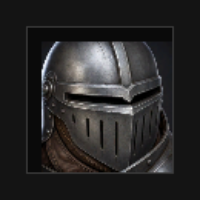
Single gear slot — label, empty/filled chrome, equipped SusInventoryItem icon, drop highlight, context menu.
Package
SusGame · Inventory (commercial)
Props
| Name | Type | Default | |
|---|---|---|---|
SlotId | Prop<string> | "" | v-model |
SlotName | Prop<string> | "" | v-model |
SlotIcon | Prop<string> | "" | v-model |
EquippedItem | Prop<ItemInstance> | null | v-model |
Highlighted | Prop<int> | 0 | v-model |
Rarity | Prop<string> | "" | v-model |
Slots
No slots.
Events
| Name | Field | Payload |
|---|---|---|
SlotClick | OnSlotClick | string |
ItemClicked | OnItemClicked | SusInventoryItem, string |
ItemDragStart | OnItemDragStart | SusInventoryItem, string |
ItemDragEnd | OnItemDragEnd | SusInventoryItem |
ItemDragging | OnItemDragging | SusInventoryItem, Vector2 |
ItemContextAction | OnItemContextAction | string, SusInventoryItem |
Style hooks
USS class contract — override appearance without touching C#. States toggle via these classes:
sus-equipment-slotsus-equipment-slot__bgsus-equipment-slot__framesus-equipment-slot__frame--rarity-commonsus-equipment-slot__frame--rarity-epicsus-equipment-slot__frame--rarity-exoticsus-equipment-slot__frame--rarity-legendarysus-equipment-slot__frame--rarity-raresus-equipment-slot__frame--rarity-uncommonsus-equipment-slot__iconsus-equipment-slot__item-fillsus-equipment-slot__labelsus-equipment-slot--emptysus-equipment-slot--filledsus-equipment-slot--highlight-candidatesus-equipment-slot--highlight-invalidsus-equipment-slot--highlight-validsus-hiddensus-inventory-item
Usage
Prefer parent SusEquipmentPanel (or SusInventory session) — the panel sets id/size/categories and paints the item. Standalone for Storybook / custom paper-doll:
csharp
var slot = new SusEquipmentSlot();
slot.SlotId.Value = "helm";
slot.SlotName.Value = "Helmet";
slot.GridWidth = 2;
slot.GridHeight = 2;
slot.CellSize = 48f;
slot.ItemMedia = "image";
slot.CellLayout = "grid";
slot.AllowedCategories = new[] { "armor" };
slot.Model = model;
slot.EquippedItem.Value = equippedInstance; // or null
slot.OnSlotClick += id => { /* unequip path */ };
slot.OnItemClicked += (item, id) => { /* select */ };
slot.UpdateItemIcon();
xml
<template>
  <sus:SusEquipmentSlot :SlotId="Id.Value"
                        :SlotName="Name.Value"
                        :Highlighted="Hl.Value" />
</template>

<script>
public Prop<string> Id = new("helm");
public Prop<string> Name = new("Helmet");
public Prop<int> Hl = new(0);
// EquippedItem / Model / AllowedCategories — set from C# after mount.
</script>| Prop / API | Role |
|---|---|
SlotId / SlotName | Identity + label |
EquippedItem | Bound ItemInstance (null = empty) |
Highlighted | 0 none · 1 valid · 2 invalid · 3 candidate |
GridWidth / GridHeight / CellSize | Footprint px = cells × size |
AllowedCategories | Category gate for Accepts(ItemDef) |
UpdateItemIcon() | Repaint equipped icon from Model |
Accepts(def) | Category check |
OnSlotClick / OnItem* / OnItemContextAction | Events |
Notes
- Context actions on the item:
equip/unequip/delete(same as bag items). - Click on empty chrome fires
OnSlotClick(SlotId)— bag layout unequips into bag; loadout opens category flyout (shell-owned). - Highlight values match SusInventoryCell.